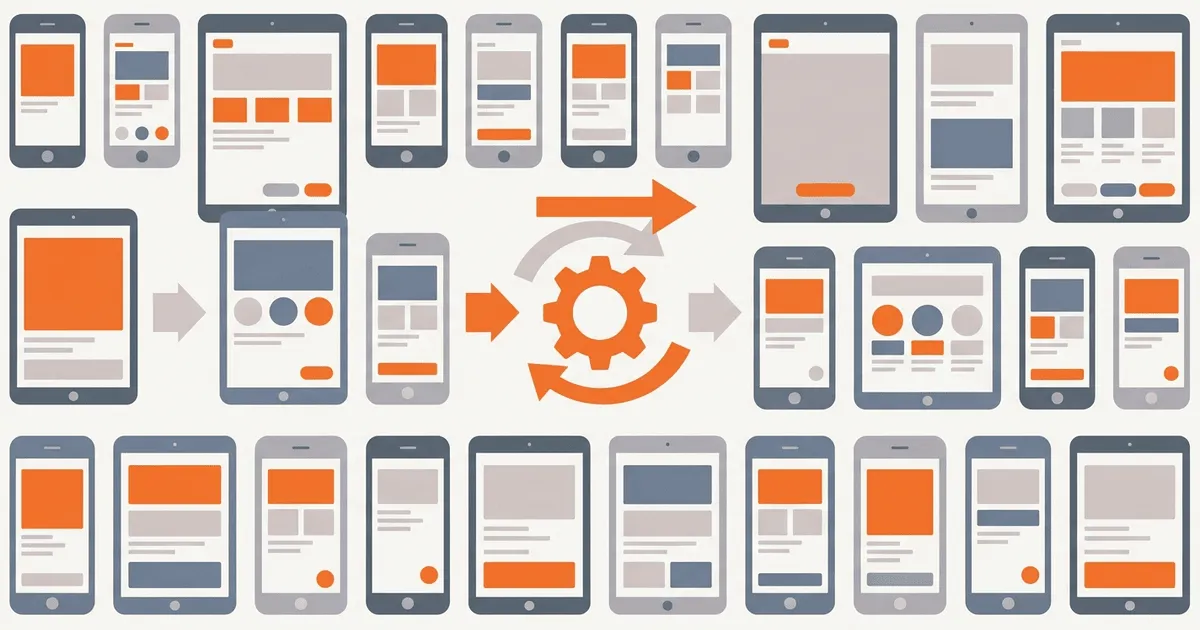
Taking manual screenshots for app store metadata is a failure path. When product teams iterate on features, someone inevitably has to launch the app, navigate to specific screens, trigger the right states, and save the images. If your app supports multiple languages and devices, the matrix expands quickly. Manual screenshots produce inconsistent app states, mismatched device crops, hidden UI bugs, and stale translations.
To solve this, engineering teams must automate localized app screenshots. By using deterministic seed data, passing explicit locale launch arguments to UI tests, and capturing the results programmatically, you can generate an entire matrix of store assets in minutes. This implementation guide explains how to design a reliable screenshot automation pipeline for iOS and Android.
The cost of manual screenshot capture
Every locale needs consistent visual assets. If your English screenshots display a dynamic promotional banner but your Spanish screenshots display a generic fallback, users notice the quality drop. Relying on humans to capture these states introduces friction and error.
Manual processes drift. A developer might take an English screenshot on an iPhone 15 Pro, but a QA tester might capture the French version on an iPhone SE, resulting in inconsistent aspect ratios. Data states differ; the English version might show a full shopping cart, while the Japanese version shows an empty state because the tester did not populate mock data.
Translations update asynchronously. When a copywriter adjusts a French marketing string, the existing screenshot immediately becomes stale. If capturing a new image requires a developer to build the app, find the screen, and upload the asset, the fix is often deferred.
Automating this process removes the human bottleneck. When you automate localized app screenshots, you treat store assets as build artifacts. Every time the application compiles, UI tests navigate the interface and capture the required images using the latest translation files.
Designing a deterministic test environment
To capture reliable screenshots, the app must behave predictably. Live network calls, dynamic dates, and personalized user data ruin consistency. You must isolate the application state.
Mocking network responses
Never use live production data for screenshot tests. If a remote API returns an error or a different payload, the resulting capture will fail or change unexpectedly. Instead, mock network responses within the UI test environment. Return static JSON fixtures that populate the UI with perfect, idealized data.
Standardizing system states
Disable system animations and standardize dynamic elements. If a loading spinner is caught mid-rotation, the screenshot looks broken. Override the system clock so the status bar always displays a fixed time, such as 9:41 AM. Lock the battery level to 100% and hide notification icons. This ensures that only the application interface dictates visual changes.
Preparing seed data
Create explicit seed routines that run before the screenshot capture begins. If a view requires a user to be authenticated, inject a valid mock token. If a screen displays a list of completed tasks, insert predetermined tasks into the local database. The state must be identical across every execution and locale.
Implementation: automating ios captures
Apple provides tools for UI testing, and ecosystem utilities simplify the automation process. To upload app previews and screenshots efficiently, you can combine XCUITest with Fastlane.
Configuring xcuitest for screenshots
XCUITest is the native framework for driving iOS interfaces. You can write specific test targets designed exclusively for capturing images.
import XCTest

class ScreenshotTests: XCTestCase {
    override func setUp() {
        super.setUp()
        let app = XCUIApplication()
        app.launchArguments.append("--uitesting")
        setupSnapshot(app)
        app.launch()
    }

    func testCaptureMainScreen() {
        let app = XCUIApplication()
        XCTAssertTrue(app.tabBars.buttons["Home"].waitForExistence(timeout: 5))
        snapshot("01_Home_Screen")
    }
}
In this implementation, the setupSnapshot function connects the native test execution to the external Fastlane automation runner. The --uitesting launch argument allows the application delegate to intercept the execution and swap the live network layer for mocked responses.
Executing with fastlane snapshot
Fastlane Snapshot coordinates the XCUITest execution across multiple simulators and languages. As explained in the Fastlane iOS documentation, you configure a Snapfile to define the target matrix.
devices([
  "iPhone 15 Pro Max",
  "iPhone SE (3rd generation)",
  "iPad Pro (12.9-inch) (6th generation)"
])

languages([
  "en-US",
  "fr-FR",
  "ja-JP"
])

scheme("ScreenshotUITests")
output_directory("./fastlane/screenshots")
clear_previous_screenshots(true)
When you execute fastlane snapshot, the tool boots each requested simulator, sets the system language, runs the XCUITest target, pulls the captured images, and organizes them by locale.
Implementation: automating android captures
Android requires a similar deterministic approach, utilizing Espresso or UI Automator alongside Fastlane Screengrab.
Writing espresso screenshot tests
Espresso allows you to navigate the Android view hierarchy and trigger captures at specific moments. You must ensure the UI is fully idle before saving the image.
import androidx.test.ext.junit.runners.AndroidJUnit4
import androidx.test.rule.ActivityTestRule
import tools.fastlane.screengrab.Screengrab
import tools.fastlane.screengrab.locale.LocaleTestRule
import org.junit.Rule
import org.junit.Test
import org.junit.runner.RunWith

@RunWith(AndroidJUnit4::class)
class ScreenshotTest {
    @Rule
    @JvmField
    val localeTestRule = LocaleTestRule()

    @Rule
    @JvmField
    val activityRule = ActivityTestRule(MainActivity::class.java)

    @Test
    fun captureDashboard() {
        // Navigate and wait for idle
        Screengrab.screenshot("01_dashboard")
    }
}
The LocaleTestRule is critical because it dynamically modifies the device configuration to match the requested language before the activity launches.
Executing with fastlane screengrab
Similar to iOS, Android automation relies on a configuration file. The Fastlane Android documentation outlines the setup for Screengrabfile.
locales(["en-US", "fr-FR", "ja-JP"])
clear_previous_screenshots(true)
tests_package_name("com.example.app.test")
app_package_name("com.example.app")
Executing fastlane screengrab compiles the test APK, installs it on the connected emulator, iterates through the locales, and extracts the saved assets to the host machine.
Advanced orchestration techniques
As apps grow, a basic script is no longer sufficient. Enterprise teams must orchestrate the capture process to handle flaky tests, intermittent emulator crashes, and asynchronous rendering issues.
Managing emulator and simulator lifecycles
Emulators consume substantial memory and CPU resources. Booting six distinct Android emulators simultaneously on a standard CI runner will cause out-of-memory errors and cascade failures. To fix this, orchestrate the lifecycle sequentially. Boot one emulator, execute the test suite across all locales for that specific device resolution, extract the assets, and then completely destroy the instance before proceeding to the next hardware profile.
For iOS, Xcode command-line tools allow you to erase simulator instances. Always execute xcrun simctl erase all prior to a capture run. This guarantees that no residual keychain data, cached network responses, or background preferences pollute the deterministic environment.
Handling asynchronous rendering
Modern UI frameworks like Jetpack Compose and SwiftUI rely heavily on asynchronous state resolution. A simple test might trigger a capture instruction before an image finishes decoding from the local bundle or before a complex layout fully calculates its bounds. This results in blank images or partially rendered components.
To prevent incomplete captures, utilize strict idling resources. In Espresso, register custom IdlingResource instances that monitor background threads and image loading libraries. The framework will block the capture instruction until the framework reports an idle state. In XCUITest, leverage expectation(for:evaluatedWith:handler:) to explicitly wait for specific UI elements to transition into their final rendered state before invoking the snapshot command.
Scaling the localization matrix
When an application expands to support thirty languages across five form factors, the permutation matrix exceeds one hundred and fifty iterations per screen. Optimization is required.
Selective execution paths
Not every screen requires capture for every locale. A deeply nested settings menu might only necessitate a screenshot in English to verify functional layout, whereas the primary onboarding flow must be captured in all thirty languages. Implement test tags or custom annotations to control execution scope.
@Target(AnnotationTarget.FUNCTION)
@Retention(AnnotationRetention.RUNTIME)
annotation class LocalizedScreenshot(val priority: Int = 1)
By annotating the test functions, the runner script can parse the metadata and dynamically prune the execution matrix, saving hours of CI processing time while maintaining comprehensive coverage of critical marketing paths.
Parallel execution with matrix sharding
If the full run must complete quickly to unblock a release, implement matrix sharding. Distribute the workload across multiple parallel CI runners. Runner A processes the iPhone matrix, Runner B processes the iPad matrix, and Runner C processes the Android profiles. A final aggregate job collects the disparate artifacts from the individual runners, consolidates the file structure, and prepares the unified payload for the storefront upload. This horizontal scaling strategy drastically reduces the feedback loop for localization validation.
Handling ui failures and layout issues
Automated screenshot tests often show localization layout failures. When text expands in German or Spanish, buttons may truncate, labels may overlap, and scroll views may break.
Detecting layout truncation
Do not blindly upload generated assets. Implement a verification step that analyzes the captured images or the view hierarchy during the test. If an XCUITest assertion detects that a critical label is truncated, fail the test. The screenshot pipeline must act as a quality gate, preventing broken interfaces from reaching the public store listing.
Dynamic content strategies
Some screens rely heavily on dynamic, user-generated content. If mocking the exact data structure is too brittle, design fallback snapshot states. Introduce hidden debug flags that force the UI into a representative configuration specifically for the screenshot run. This compromises pure integration testing but guarantees reliable marketing assets.
Ci/cd pipeline integration
Screenshot automation works best when integrated into Continuous Integration (CI). Developers should not run these lengthy matrices on their local machines.
Nightly capture runs
Generating hundreds of localized app screenshots is computationally expensive. Running the full suite on every pull request will exhaust CI runner minutes and delay merges. Instead, schedule a nightly workflow. The nightly run checks out the latest stable branch, builds the test apps, executes the screenshot matrix, and uploads the results to an internal review dashboard.
Artifact storage and review
Store the generated images as CI artifacts. Implement a custom script that generates a static HTML page displaying the screenshots in a grid, organized by screen and locale. This allows designers, translators, and product managers to visually verify the localization quality without installing the application.
Next steps for screenshot delivery
Once you can reliably automate localized app screenshots, the final objective is deployment. Configure your continuous delivery pipeline to consume the generated images and push them directly to App Store Connect and the Google Play Console using Fastlane Deliver and Supply. This completes the loop, ensuring that every merged string translation automatically propagates to the public storefront without manual intervention.
References
- Apple Developer Help: Upload app previews and screenshots explains the requirements for iOS storefront assets.
- Fastlane iOS Documentation: Screenshot Automation demonstrates how to generate consistent Apple device matrices.
- Fastlane Android Documentation: Screengrab Setup provides the implementation steps for Android locale injection and capture.