
Tłumacz katalogi ciągów Xcode w kilka sekund
Formy liczby mnogiej są zgodne z CLDR. Warianty urządzeń pozostają zachowane. Stany tłumaczeń są śledzone. Twoje pliki .xcstrings są tłumaczone bez opuszczania IDE.
Tłumaczenie katalogów ciągów jest zwodniczo złożone
Katalogi ciągów w Xcode 15 zastąpiły pliki .strings i .stringsdict jednym plikiem JSON — lecz złożoność nie zniknęła. Formy liczby mnogiej wymagają właściwych kategorii CLDR dla każdego języka, warianty urządzeń (iPhone, iPad i Mac) muszą pozostać sparowane ze swoimi kluczami, a przy śledzeniu stanu przez Xcode jedno błędne pole unieważnia cały wpis.
Każdy język wymaga innych kategorii liczby mnogiej CLDR — arabski potrzebuje wszystkich sześciu, japoński tylko „other”, a rosyjski czterech odrębnych form
Warianty ciągów dla poszczególnych urządzeń (iPhone, iPad, Mac, Apple Watch) muszą pozostać prawidłowo powiązane z kluczami nadrzędnymi
Xcode śledzi stany tłumaczeń (new, needs_review, translated, stale) — błędne wartości stanu sprawiają, że Xcode ignoruje lub niewłaściwie oznacza tłumaczenia
Migracja ze starszych plików .strings/.stringsdict do .xcstrings wprowadza różnice formatu, których uniwersalne narzędzia nie obsługują
{
  "sourceLanguage": "en",
  "version": "1.0",
  "strings": {
    "welcome_title": {
      "extractionState": "manual",
      "localizations": {
        "en": {
          "stringUnit": {
            "state": "translated",
            "value": "Welcome to the App"
          }
        }
      }
    },
    "item_count": {
      "localizations": {
        "en": {
          "variations": {
            "plural": {
              "zero": {
                "stringUnit": {
                  "state": "translated",
                  "value": "No items"
                }
              },
              "one": {
                "stringUnit": {
                  "state": "translated",
                  "value": "%lld item"
                }
              },
              "other": {
                "stringUnit": {
                  "state": "translated",
                  "value": "%lld items"
                }
              }
            }
          }
        }
      }
    },
    "device_greeting": {
      "localizations": {
        "en": {
          "variations": {
            "device": {
              "iphone": {
                "stringUnit": {
                  "state": "translated",
                  "value": "Tap to continue"
                }
              },
              "ipad": {
                "stringUnit": {
                  "state": "translated",
                  "value": "Tap or click to continue"
                }
              },
              "mac": {
                "stringUnit": {
                  "state": "translated",
                  "value": "Click to continue"
                }
              }
            }
          }
        }
      }
    }
  }
}{
"sourceLanguage": "en",
"version": "1.0",
"strings": {
"welcome_title": {
"extractionState": "manual",
"localizations": {
"de": {
"stringUnit": {
"state": "translated",
"value": "Willkommen in der App"
}
}
}
},
"item_count": {
"localizations": {
"de": {
"variations": {
"plural": {
"zero": {
"stringUnit": {
"state": "translated",
"value": "Keine Elemente"
}
},
"one": {
"stringUnit": {
"state": "translated",
"value": "%lld Element"
}
},
"other": {
"stringUnit": {
"state": "translated",
"value": "%lld Elemente"
}
}
}
}
}
}
},
"device_greeting": {
"localizations": {
"de": {
"variations": {
"device": {
"iphone": {
"stringUnit": {
"state": "translated",
"value": "Tippen zum Fortfahren"
}
},
"ipad": {
"stringUnit": {
"state": "translated",
"value": "Tippen oder klicken zum Fortfahren"
}
},
"mac": {
"stringUnit": {
"state": "translated",
"value": "Klicken zum Fortfahren"
}
}
}
}
}
}
}
}
}Co zachowuje i18n Agent
Formy liczby mnogiej
Właściwe kategorie liczby mnogiej CLDR generowane dla każdego języka docelowego — od jednej kategorii w japońskim po sześć kategorii w arabskim
Warianty urządzeń
Warianty ciągów dla iPhone'a, iPada, Maca i Apple Watch pozostają prawidłowo powiązane z kluczami nadrzędnymi
Obsługa stanów
Stany tłumaczeń (new, needs_review, translated) są ustawiane prawidłowo, dzięki czemu proces lokalizacji w Xcode działa poprawnie
Zgodność formatu
Plik wynikowy jest w pełni zgodny z edytorem katalogów ciągów Xcode i bezproblemowo integruje się zarówno z nowymi, jak i zmigrowanymi projektami
Działa w całym ekosystemie programistycznym Apple
Jak to działa
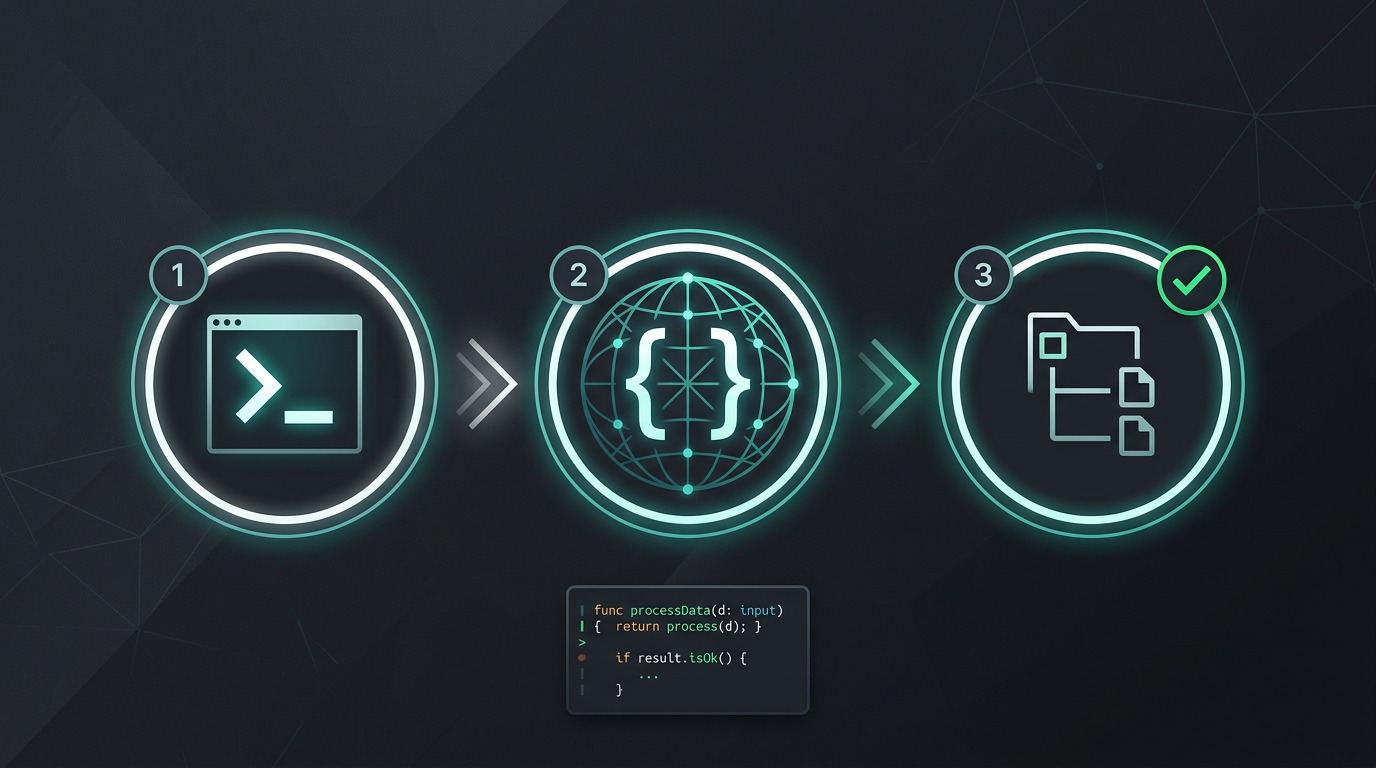
Bez ręcznego kopiowania i wklejania. Bez wyodrębniania ciągów. Tylko przetłumaczone pliki.
Wypróbuj i18n Agent
Upuść tutaj plik tłumaczenia
JSON, YAML, PO, XML, CSV, Markdown, Properties
lub kliknij, aby go wybrać
Języki docelowe
Najczęściej zadawane pytania
Tworzysz oprogramowanie?
Zainstaluj narzędzie CLI i przetłumacz pierwszy plik w 2 minuty.
Zainstaluj narzędzie CLIZespół korporacyjny?
Nadal obowiązuje Cię umowa z dostawcą TMS? Porozmawiajmy o migracji.