 User Guide · Klaviyo
Klaviyo Integration User Guide
Install the app, translate flows into any language, and understand exactly which Klaviyo data the integration uses. Built for merchants listing and using i18n Agent from the Klaviyo App Marketplace.
What this integration does
i18n Agent connects to your Klaviyo account with OAuth and translates marketing content (email templates, SMS messages inside flows, and signup forms) into 40+ languages. For each target language it creates translated templates and a language-filtered flow clone so the right profile gets the right language. It can also set a profile property for language routing.
Scope
Installation guide
You need an i18n Agent account and a Klaviyo account with permission to authorize apps. Installation takes a few minutes and does not require a private API key.
Before you start
- An i18n Agent workspace (sign up at i18nagent.ai if you do not have one).
- A Klaviyo account where you can approve OAuth apps (Owner or Admin).
- At least one flow with email or SMS actions you want to translate.
Connect Klaviyo
- 1
Open Integrations
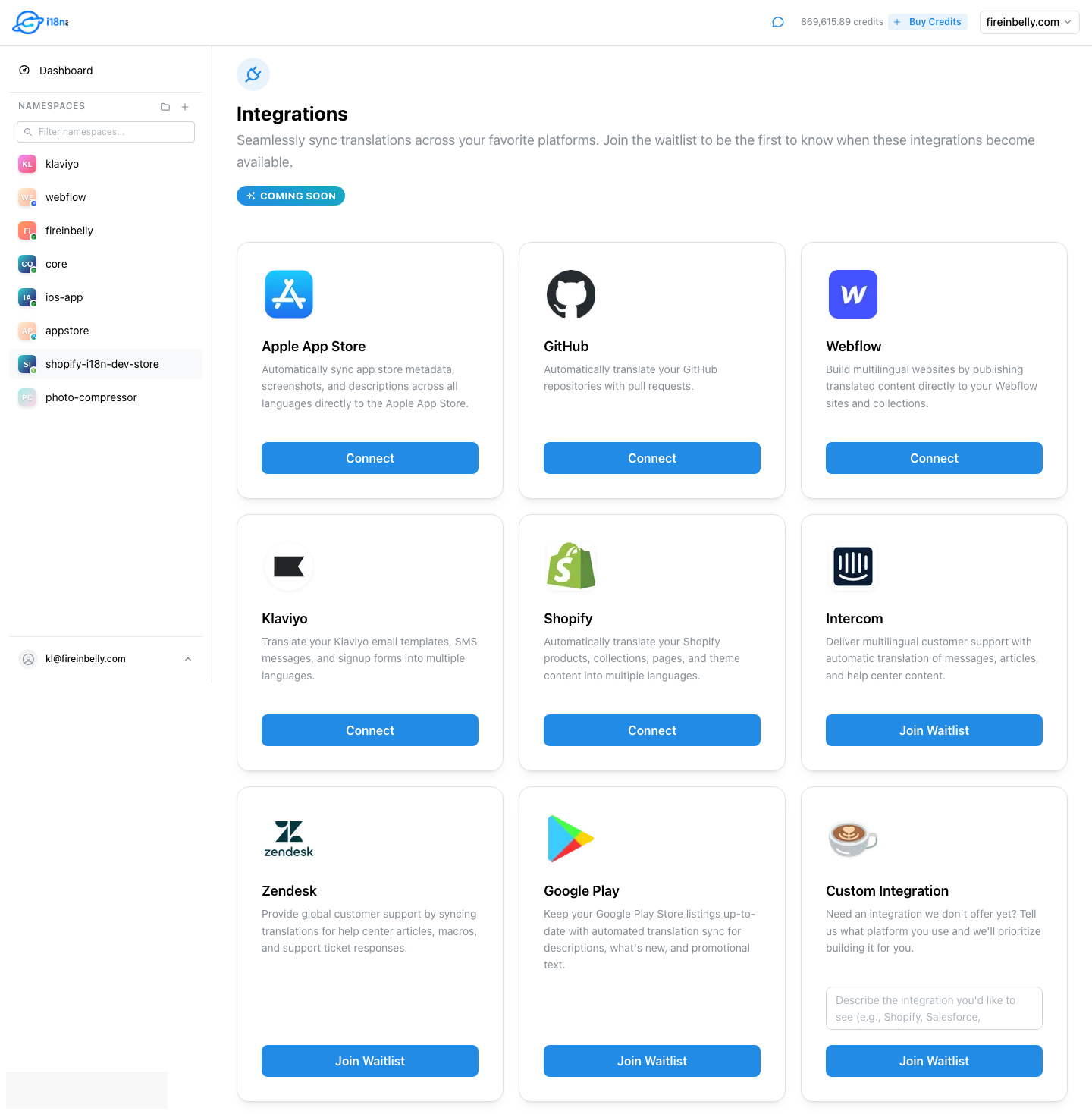
Sign in to the i18n Agent app, then go to Dashboard → Integrations. You will see platform cards including Klaviyo.
- 2
Start Connect
On the Klaviyo card, click Connect. You are redirected to Klaviyo’s authorization screen through a secure one-time connect ticket (your team is bound to the session, not a guessable URL parameter).
- 3
Approve scopes
On Klaviyo, review and allow the requested permissions. i18n Agent requests only what it needs to translate content and route language:
OAuth scopes requested
templates:read, templates:write, flows:read, flows:write, forms:read, forms:write, profiles:read, lists:read, webhooks:read, webhooks:write, accounts:read- 4
Confirm the connection
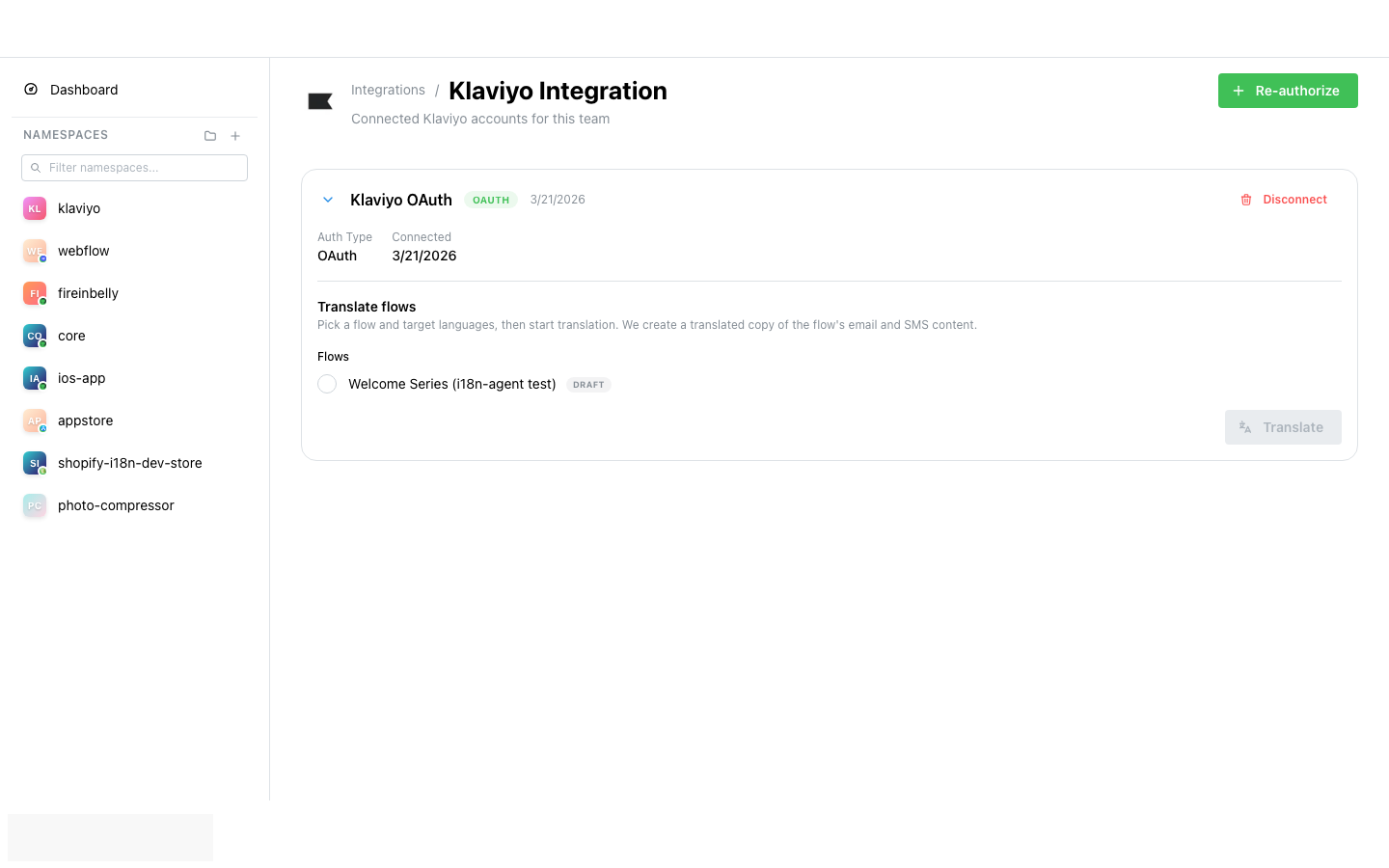
After you allow access, Klaviyo redirects you back to i18n Agent. You should land on Integrations → Klaviyo with a connection named “Klaviyo OAuth”, auth type OAuth, and status Active. Use Re-authorize anytime to re-accept scopes without creating a duplicate connection.
- 5
Disconnect (optional)
Click Disconnect on the connection card. You have a short undo window before the connection is removed. You can also revoke the app from Klaviyo → Account → Integrations / API apps.
Need help installing?
How to use the app
After installation, translation is driven from the Klaviyo integration page in i18n Agent. The primary use case is translating an existing flow into one or more languages.
Translate a flow into multiple languages
Create language-specific flow copies with translated email HTML, subject lines, preview text, and SMS bodies.
- 1
Open the connection
Open Dashboard → Integrations → Klaviyo and expand your OAuth connection.
- 2
Select a flow
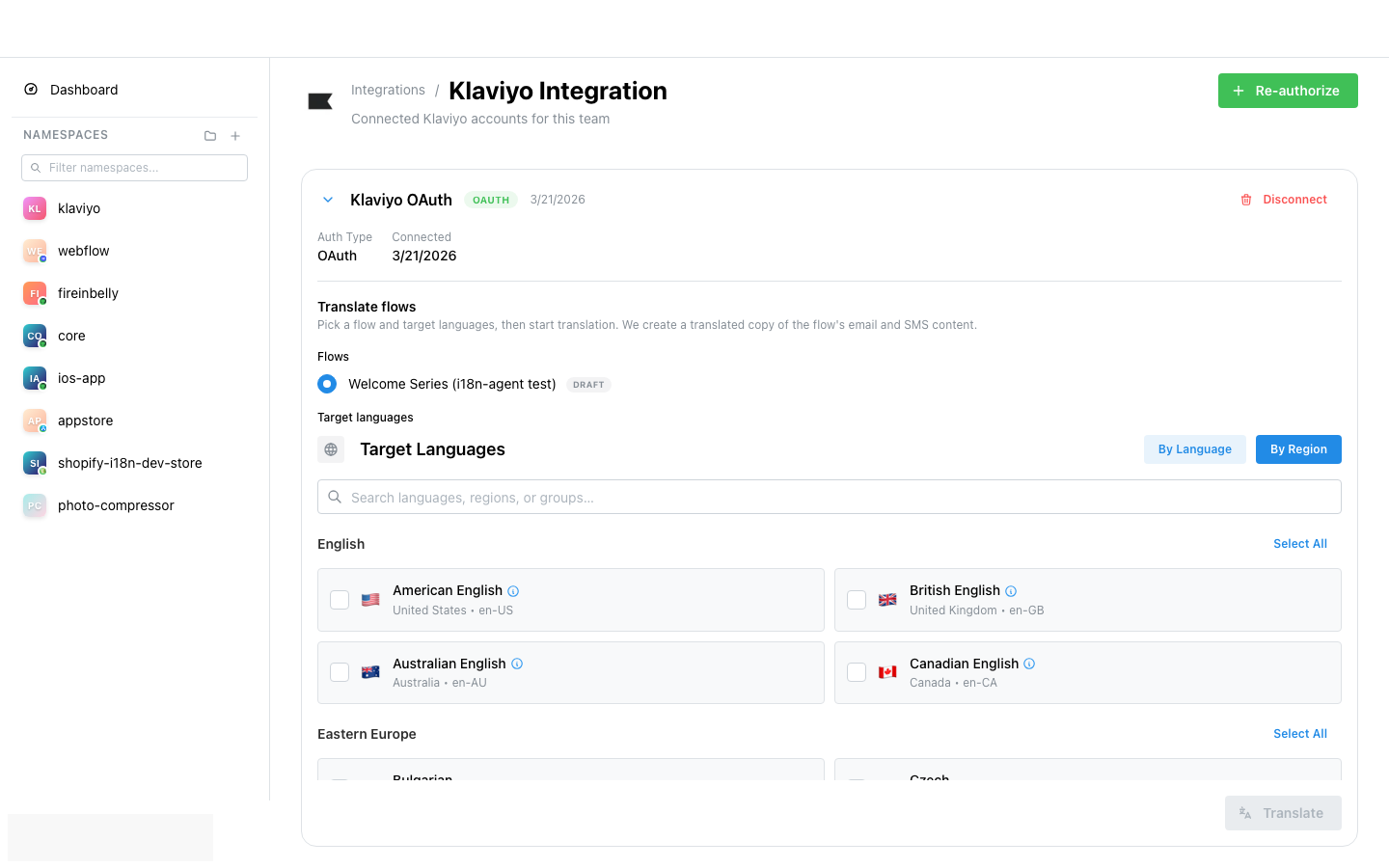
Under Translate flows, select the source flow (for example a Welcome Series). Draft and live flows both appear when Klaviyo returns them.
- 3
Choose languages
Choose one or more target languages in the language picker.
- 4
Start translation
Click Translate. i18n Agent starts a job: it pulls email/SMS content from the flow, runs AI translation with character-limit awareness, creates new templates in Klaviyo, and clones the flow per language.
- 5
Review clones in Klaviyo
In Klaviyo, open Flows. You should see new flows named like “{original name} ({lang})” in draft (unless activation is enabled for your job). Each clone includes a profile filter: properties['language'] equals that language code.
- 6
Filter the original flow
Manually add a filter on the original flow so profiles with those languages do not also receive the English (or source) version. Klaviyo’s public API cannot rewrite an existing flow’s profile filter, so this step is intentional and required to avoid double sends.
Avoid duplicate sends
Set profile language for routing
Cloned flows only fire for profiles whose custom property language matches the clone (properties['language']). Set this property from your storefront, CDP, or Shopify sync. i18n Agent can also enrich profiles by reading Klaviyo’s profile locale and writing properties.language when it is empty.
Re-authorize or reconnect
If tokens expire or scopes change, click Re-authorize on the Klaviyo page. Complete Klaviyo’s consent screen again. Existing connections are updated in place.
What happens after Translate
- Pull: flow email actions → template HTML; message subject_line and preview_text; SMS body when present.
- Translate: multi-model pipeline with SMS (160), subject (~150), and preview (~250) limits.
- Push: create templates named “{name} - {lang}”; create flows “{name} ({lang})” with the same triggers and a language profile filter.
- Track progress in your team namespaces / activity in the i18n Agent dashboard.
Data reference
This section lists data the integration reads from Klaviyo, writes to Klaviyo, and stores in i18n Agent. Use it for security review, segmentation design, and App Marketplace compliance.
| Resource | Read from Klaviyo | Write to Klaviyo |
|---|---|---|
| Account | Organization / account display name used to label the connection. | — |
| Flows | Flow id, name, status, trigger type, archived flag, full definition (actions, entry action, links, triggers, profile_filter) when available. | Creates new flow clones per target language with translated message content and a profile filter on properties['language']. Does not delete source flows. Cannot PATCH definition on existing flows (API limitation). |
| Email templates | Template id, name, HTML body, optional text body, editor type. | Creates new CODE templates with translated HTML (and text when provided). Naming pattern default: “{name} - {lang}”. |
| Flow messages (email & SMS) | Email: subject, preview_text, from_email, from_label, linked template_id. SMS: body text. | Cloned flow messages receive translated subject_line, preview_text, template_id, or SMS body. Message ids are not reused; Klaviyo creates new message objects on the clone. |
| Forms | Form definition blocks: html_text content, button labels, input labels/placeholders/error messages, dropdown/checkbox/radio option labels, SMS consent and disclosure text. | Creates translated form variants with localized field values. Server-only reference fields (internal ids, asset ids) are stripped when creating the new form. |
| Profiles | Profile id, email, locale, properties (only as needed for language enrichment). | May set properties.language derived from attributes.locale when language is not already set. Does not overwrite an existing language property. |
| Lists | List metadata via lists:read (for account context). Not used as a primary translation target. | — |
| Webhooks | Webhook configuration for change detection. | Can register webhooks so template/flow changes on tracked sources trigger re-translation jobs. |
Key profile property
properties.languageString language or locale code (examples: en, fr, de, pt-BR, zh-Hans). Used as the profile filter on every translated flow clone so only matching profiles enter that flow.
What we do not sync
- No custom metrics or events are pushed into Klaviyo for opens, clicks, or purchases.
- Catalog, order, and checkout data are out of scope (use Shopify or other ecommerce integrations for those).
- We do not modify subscriber email addresses, consent flags, or suppressions.
Content limits applied during translation
- SMS body: 160 characters (GSM-7); UCS-2 content is handled with tighter segment awareness.
- Email subject line: recommended max 150 characters.
- Preview text: recommended max 250 characters.
- Form fields: button labels 50, field labels/placeholders 100, error messages 200, html_text 2000, SMS consent 500.
Credentials & security
Support & related links
Ready to connect Klaviyo?
Authorize once, translate flows without manual clone-and-paste, and keep language routing on a single profile property.
Pour les spécialistes de l'e-mailing et les marchands Shopify · i18n Agent is not affiliated with or endorsed by Klaviyo as a preferred partner.